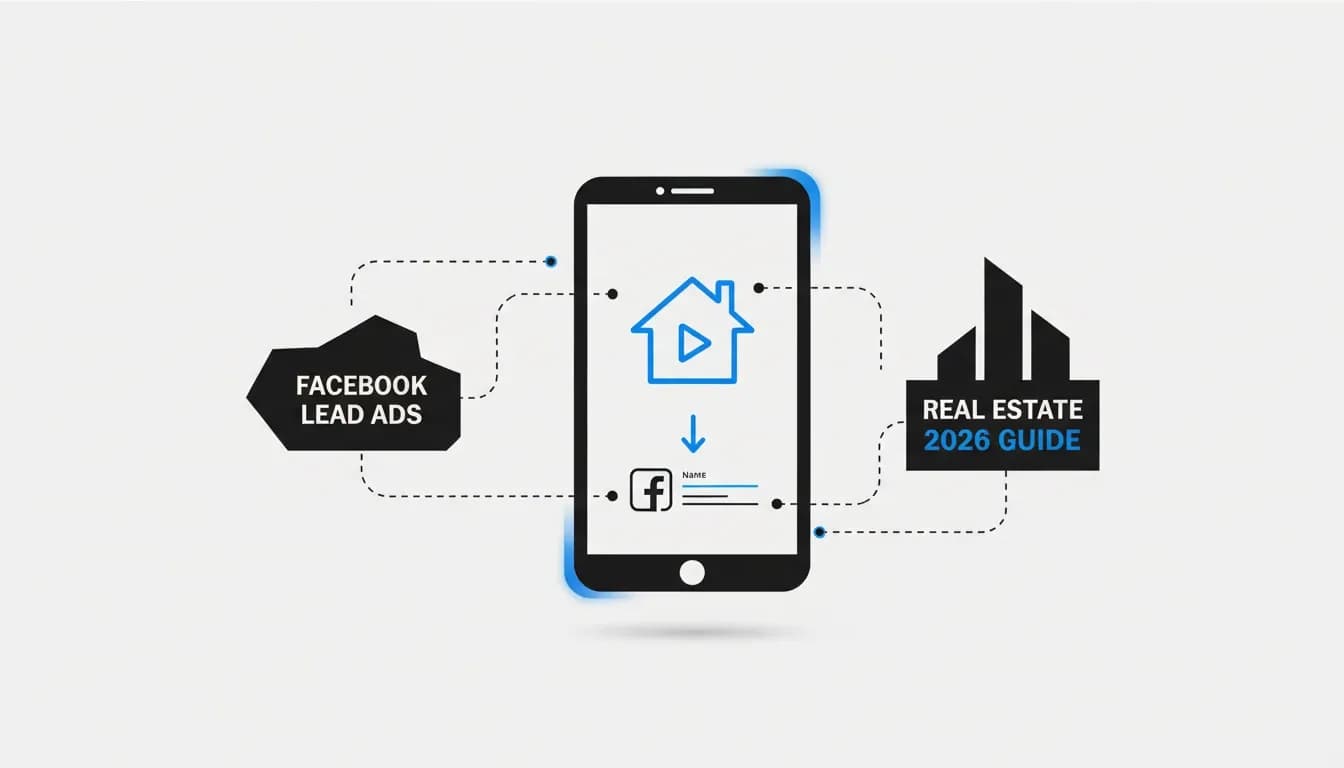
If we’re still downloading CSVs from Facebook, emailing them to ourselves, and manually pasting leads into a CRM, we’re burning time and losing deals. Facebook Lead Ads can be one of the fastest, cheapest ways to fill a real estate pipeline—but only if those leads flow straight into a real follow-up system.
In this advanced, practical guide, we’ll walk through exactly how to:
- Set up high-converting Facebook Lead Ads for real estate buyers and sellers
- Connect Facebook & Instagram Lead Forms to your real estate CRM or IDX website
- Map real-estate-specific fields (budget, area, beds/baths, property address, timeline)
- Automate lead routing, instant follow-ups, and property alerts—no CSV files
- Use Facebook Ads Manager, Pixel, and Conversions API to track & optimize performance in 2026
We’ll keep the tone casual but go deep, based on what actually works when we build Meta lead systems for real estate agents, teams, and brokerages.
What Is Facebook Lead Ads Integration for Real Estate?
Facebook Lead Ads (Meta Lead Ads) use an on-platform Instant Form. A buyer or seller taps your ad on Facebook or Instagram, sees a short form with their name, email, and phone pre-filled from their profile, and submits in seconds—without leaving the app.
Integration is everything that happens after they hit “Submit”:
- The lead is instantly synced from Facebook to:
- Your real estate CRM (Follow Up Boss, KVCore, Pixxi, Sierra, BoomTown, HubSpot, Salesforce, etc.)
- Your IDX / real estate website platform (AgentFire or similar)
- Your marketing stack (email system, SMS platform, spreadsheets, Slack, etc.)
- Fields like buyer/seller type, budget, neighborhoods, property address, move timeline land in the right place
- Automations fire:
- Immediate SMS and email replies
- Lead routing to the right agent
- IDX saved searches and listing alerts
- Tasks and reminders in your CRM
Done right, this looks like:
- New Facebook real estate leads appear in your CRM in real time
- Agents get mobile notifications within seconds
- Leads are tagged by campaign, ad set, and form, so we can tell which offers are actually producing closings
- No one on the team ever has to touch a CSV export again
Why Real Estate Agents Need Automated Facebook → CRM Integration
In real estate, speed-to-lead and consistent follow-up matter more than almost anything else. When we’ve audited agent accounts that were “doing Facebook,” these were the usual problems:
- Slow responses: Agents only saw leads when they checked Ads Manager or a daily email. By then, the prospect had already filled out two other agents’ forms.
- Messy or missing data: Copy-paste from spreadsheets into the CRM led to wrong phone numbers, no price range, and “John” becoming “Jhon.”
- Lost leads: Files buried in downloads folders, staff forgetting to upload, no single source of truth.
- Inconsistent follow-up: Some leads got 10 touches, others got none, depending on who happened to be “on it” that day.
Once we wire Facebook Lead Ads directly into a CRM or IDX platform, all of that changes:
- Every lead shows up in one place with clean, structured data
- Lead routing rules send buyers and sellers to the right agents or ISAs automatically
- Text, email, and even WhatsApp or Messenger sequences kick off without anyone remembering to push a button
- We can finally track CPL, CPA, and ROI from “Facebook Ads” all the way through to closed deals
There are three main ways to set up a Facebook lead connector for real estate.
1. Native Facebook Lead Ads CRM Integrations
Many CRMs now offer native Meta Lead Ads integration, so we don’t need third-party middleware at all.
Typical features:
- Direct connection to your Facebook Pages and Instant Forms
- Built-in UI for field mapping (budget, areas, property type, etc.)
- Lead source tags, auto-assignment, and workflow triggers
- Higher reliability and fewer moving parts to debug
Examples include general CRMs like HubSpot and Salesforce, plus many real estate CRMs such as Follow Up Boss, KVCore, LionDesk, Sierra, Chime, and others. Often, we can go into Settings → Integrations → Facebook / Meta / Lead Ads and have a working sync in a few minutes.
When a CRM doesn’t have a native connector, or we want more flexibility, we use an integration platform:
- Zapier
- Make (Integromat)
- LeadsBridge (heavily focused on ads-to-CRM syncing, with real estate templates)
A typical automation looks like:
- Trigger: New lead from Facebook Lead Ads
- Bridge: Zapier/Make/LeadsBridge receives the form data
- Actions:
- Create or update contact in your CRM
- Post to a Slack channel or send internal email/SMS to the team
- Add rows to a Google Sheet for backup and reporting
- Tag leads differently depending on which form or campaign they came from
We often use this route when we’re stitching together a stack like: Facebook Lead Ads → Zapier → niche CRM + email platform + Google Sheets, all in real time.
Real-estate-first platforms usually give us a smoother, more opinionated Meta Ads integration.
- AgentFire: Connects Facebook Lead Ads directly to a built-in lead manager and IDX website, then automates email, SMS, and saved-search alerts based on the lead’s criteria.
- Pixxi CRM (Meta Ads integration): Geared to real estate teams (including fast-moving markets like the UAE). Instantly captures Facebook and Instagram Lead Forms, auto-assigns them to agents, and surfaces ad performance inside CRM dashboards.
- CoreCast: Ties Facebook Instant Form leads into a pipeline that lives alongside portfolio and property management data, useful for commercial and investment-focused real estate.
When we set up integrations for agents already on these types of platforms, we usually prefer the built-in Meta Ads / Facebook Ads Manager integration over third-party bridges unless there’s a very specific workflow we can’t handle natively.
Strategy Before You Touch Ads Manager
Most agents start with “I want to run a Facebook ad.” We’ve learned to start with three strategic decisions instead:
1. Choose the Offer, Not the Ad
People don’t give us their data to “learn more about our services.” They do it to get something concrete.
Consistently strong real estate Facebook lead offers include:
- Custom lists of homes:
- “Homes under $500K with pools in [City]”
- “Bungalows under $800K with double garages”
- “New construction homes under $600K in [Area]”
- Exclusive or hard-to-find inventory:
- “Builder inventory not yet online”
- “Off-market or coming soon opportunities in [Neighborhood]”
- Guides & checklists:
- “2026 First-Time Buyer Guide for [City]”
- “Downsizing Guide: How to Sell & Simplify in [Area]”
- “Step-by-Step Home Selling Blueprint”
For integration, the offer matters because we’ll be mapping different fields (buyer vs seller, investor vs downsizer) and triggering different workflows in the CRM.
2. Define Exactly Who It’s For
We get better results when the ad talks directly to someone, not “everyone in town.” For example:
- “First-time buyers in [City] looking under $400K”
- “Homeowners in [Neighborhood] thinking about downsizing”
- “Investors looking for cash-flowing duplexes in [Metro]”
That clarity influences:
- Ad copy (“[City] downsizers, this is for you…”)
- Lead form questions (move timeline, current home ownership, investor vs owner-occupier)
- Lead routing rules and tags in the CRM
3. Decide the Follow-Up Plan Up Front
Once the Meta Ads integration is live, new leads will start popping into the system day and night. Before that happens, we decide:
- Where do they land? Which CRM, pipeline, or list handles Facebook real estate leads?
- Who owns first contact? The agent, an ISA, or a VA?
- What’s the default nurture? Auto text + email on day 0, plus a sequence of touches over the next days and weeks.
We then bake those decisions into the integration: tags, stages, and automations get configured once so each new Facebook lead follows the same high-converting path.
Core Technical Setup: Business Manager, Pixel, and Permissions
1. Meta Business Manager & Permissions
Reliable integration starts with the right access inside Meta Business Manager:
- Visit business.facebook.com and open Business Settings.
- Under Users → People, make sure our user (or the integration service account) has Admin access.
- Under Accounts → Pages and Accounts → Ad Accounts, confirm:
- The correct Facebook Page is added to this Business Manager
- The ad account we’ll use for real estate Facebook advertising is also there
- Under Integrations → Leads Access Manager, grant the CRM or integration platform permission to access leads for that Page.
We always confirm these permissions first; most “my leads stopped syncing” issues trace back to ownership changes or lost admin rights.
Even when we use on-platform Lead Forms, we still install the Meta Pixel (and ideally the Conversions API) on the real estate website/IDX.
- To track what Facebook leads do on the site (view listings, save searches, request showings)
- To build Custom Audiences for retargeting high-intent visitors
- To improve optimization in Ads Manager, especially as browser tracking gets stricter
High-level setup:
- Create a Pixel in Events Manager
- Install via your website builder, IDX provider, or tag manager
- Send core events like
PageView, ViewContent (property views), Lead, and Contact
- Optionally connect a server-side Conversions API via a tool like Stape or your CRM for better data accuracy
Building a Facebook Lead Ads Campaign for Real Estate
1. Campaign Setup in Facebook Ads Manager
- In Ads Manager, click Create.
- Select the objective: Leads.
- Choose Manual leads campaign (we prefer full control over the automated presets).
- Turn on Special Ad Category → select Housing and your country.
We typically name campaigns with the offer and location, e.g. FB Leads – [City] – Bungalows <800K – 2026-03, so we can tie CRM performance back to specific offers.
2. Ad Set: Location, Budget, Targeting & Placements
The Ad Set controls where and how your Facebook real estate lead generation campaigns run.
Location & Special Ad Category Constraints
- Under HOUSING, Meta forces a 15-mile minimum radius.
- We can’t narrow by age, gender, or many sensitive interests.
So we set:
- Location: your primary city or metro (e.g. “Denver” + 15–25 miles)
- Age & Gender: leave as default (all)
- Detailed targeting: often we leave this broad; the offer and creative do the filtering.
Budget & Schedule
For a single Ad Set testing one audience, a solid starting point is:
- $15–20/day for 10–14 days
- Schedule start next morning; optionally set an end date so we’re forced to review performance
Placements
We can let Meta run Advantage+ placements, but when we’re dialing in early creative and integration, we often keep placements simple:
- On: Facebook News Feed (and optionally Instagram Feed)
- Off for now: Reels, Stories, in-stream, Audience Network, until we have formats built for them
3. Ad Creative: Copy, Image, and Positioning
For real estate Facebook ads, the winner, again and again, is a clear offer + relevant local photo.
Images That Convert
- Actual property photos from your market that match the offer:
- List of bungalows → photo of a real bungalow in that price range
- New construction list → clean exterior or model home shot
- Local style: the house should look like a home in your area, not a random stock mansion.
- Cropped to 1:1 or 4:5 so the property fills the frame.
Primary Text (Main Body)
The first 3 lines must call out the audience, state the offer, and hint at the benefit.
[City] homeowners:
Want a free, always-updated list of the most popular bungalows under $800K in [City]?
We’ve put together a custom list pulled straight from the MLS – more accurate than Zillow and updated 24/7.
Then we expand with bullets, who it’s for, and what they’ll get.
Headline & Call to Action
- Headlines like:
- “Bungalows Under $800K – Updated Daily”
- “Homes Under $500K with Pools – See the List”
- “Free 2026 First-Time Buyer Guide – [City]”
- CTA button: Learn More almost always outperforms “Sign Up” for these offers.
The Instant Form is where we balance volume vs lead quality. We want just enough information to qualify a buyer or seller without scaring them off.
- Form Type:
- More volume if you want max quantity at the lowest CPL
- Higher intent if you’re willing to pay more per lead for better quality (we usually start here for most agents)
- Sharing: “Open” is usually fine so the ad can be shared.
2. Smart Qualifying Questions
We typically use 1–2 multiple-choice questions that later become field-mapped qualifiers in the CRM.
Buyer example:
- “Are you planning to buy in the next 12 months?”
- 0–3 months
- 3–6 months
- 6–12 months
- Just browsing / more than a year out
Seller example:
- “Do you currently own a home in [City]?”
- Yes, I own here
- No, I don’t own here
We can later route “Yes, I own here” into a seller pipeline with home valuation follow-ups, and “0–3 months” into a hot buyer list.
At minimum, we use Facebook’s user info fields:
- Full name (or first + last)
- Email
- Phone number
For real estate lead generation, we often add one or two custom questions based on the offer:
- Buyer-focused:
- Price range (dropdown or short answer)
- Preferred neighborhoods or areas
- Property type (condo, single-family, townhouse)
- Seller-focused:
- Property address (street, city, ZIP/postcode)
- Property type (condo, detached, multi-family)
- Timeline to sell
We’ve found that one well-designed qualifier plus contact info usually gives us a good balance of conversion rate and lead quality. More than 2–3 extra required fields can hurt performance unless the offer is extremely strong (for example, a very detailed home valuation or financing pre-qualification).
4. Privacy Policy & Compliance
- Add a Privacy Policy URL from your website or brokerage site
- Briefly state how you’ll use their info (“We’ll use your details to send your list and follow up about your home search. No spam.”)
- Stay within Facebook’s Housing Special Ad Category rules and your local data privacy laws (GDPR, CCPA, etc.)
5. Thank-You Screen & IDX Redirect
On completion, we want the lead to immediately access what we promised while also landing on a tracked page.
- Headline: “Thanks – Your List Is Ready!”
- Button type: View Website or “Download” (for PDFs)
- Button text: “View the List Now” or “Get the Guide”
- URL: a filtered IDX search result or landing page that exactly matches the offer (e.g., bungalows under $800K, homes with pools under $500K, etc.)
That way, they’re inside your site and search experience instantly, your Pixel fires, and your CRM integration can apply additional tracking or segmentations.
Connecting Facebook Lead Ads to Your Real Estate CRM
Now we connect the dots so there’s a seamless, real-time Facebook → CRM lead sync.
1. Native CRM → Facebook Lead Ads Integration
Inside your CRM, look for something like “Lead Ads,” “Meta Ads,” “Facebook integration,” or “Facebook lead connector.”
- Open Settings → Integrations (exact path varies by CRM).
- Select Facebook Lead Ads / Meta Ads.
- Click Connect or Authorize and log into Facebook.
- Allow access to:
- Your ad accounts
- Your pages
- Leads for those pages
- Select which Pages and which Instant Forms should sync into which pipelines, stages, or lists.
Systems like Pixxi and other mobile-first CRMs for real estate often also let us turn on auto-agent assignment, mobile notifications, and built-in dashboards for Meta Ads performance from the same screen.
2. Zapier / Make / LeadsBridge Workflow
If we’re using an integration platform, the pattern is similar across tools.
Zapier example:
- Create a new Zap.
- Trigger app: Facebook Lead Ads → event New Lead.
- Select the correct Business Account, Page, and Form.
- Action app: your CRM → event Create/Update Contact or Create Lead.
- Authorize the CRM, then map Facebook form fields to CRM fields (see next section).
- Optionally add:
- A Google Sheets row for backup
- A Slack/Teams notification for the sales team
- Branching logic: different pipelines depending on form, answer, or campaign
3. Real-Estate CRM & IDX Platforms
On real-estate-specific platforms the flow often looks like:
- Open the platform’s Integrations area
- Select Meta Ads / Facebook Lead Ads
- Authorize Meta Business
- Choose the Page(s) and Lead Forms
- Map form fields into the CRM’s buyer/seller objects
- Turn on agent assignment, automated follow-ups, and IDX/MLS alerts
Because these tools already “think” in terms of property alerts, buyer vs seller fields, and mobile workflows, they’re often the fastest path from Facebook Lead Ads to a working, end-to-end marketing-to-sales funnel.
Field Mapping: Turning Form Fields into Real Estate Intelligence
Field mapping is where we stop treating leads like generic contacts and start capturing real, actionable real-estate data.
- First Name → Contact first_name
- Last Name → Contact last_name
- Email → Primary email
- Phone → Mobile phone
We also like to capture:
- Facebook Lead ID or Form ID → custom field (for debugging)
- Campaign / Ad Set / Ad Name → source fields, so we can see in the CRM which creative or offer produced the deal
2. Buyer Lead Fields
For buyer lead ads, we map:
- “Are you planning to buy in the next 12 months?” → Lead stage or “buying timeline” custom field
- “Price range” → Budget min/max fields
- “Preferred areas” → City/Neighborhood/Region interest fields
- “Property type” → Property type preference (condo, single-family, townhouse, multi-family)
- “Bedrooms/Bathrooms” (if included) → Min beds / min baths fields
With this information properly mapped, we can:
- Auto-create IDX saved searches that match those criteria
- Trigger listing alerts with new properties and price changes
- Route high-budget or specific-area buyers to specialist agents
3. Seller Lead Fields
For home valuation and seller-focused Facebook lead generation:
- “Property Address” → Street address field
- “City” & “ZIP/Postcode” → City + Postal code fields
- “Property type” → Seller property type (condo, detached, etc.)
- “When are you planning to sell?” → Seller timeline field
- Optional: “Estimated value” or “Mortgage balance” → valuation-related custom fields (store securely, respect privacy)
That lets us:
- Segment hot sellers (“0–3 months”) from long-term owners (“12+ months”)
- Generate automated CMAs or send tailored market reports by neighborhood
- Assign potential high-value listings to experienced listing specialists
4. Technical Field Mapping Notes
- Match field types: numbers to numeric fields, dates to date fields, options to dropdowns.
- Set deduplication rules in the CRM based on email and/or phone so repeat leads update the record instead of creating duplicates.
- Make sure each important question in the Instant Form has an actual destination field—not just “blobbed” into notes where it becomes useless.
Testing Your Facebook Lead Ads Integration End-to-End
Meta gives us a handy tool at developers.facebook.com/tools/lead-ads-testing.
- Select your Page.
- Choose the Instant Form you’ve integrated.
- Click Create Test Lead.
Then we hop into the CRM and verify that:
- The test lead appears quickly (within seconds or a minute or two)
- All mapped fields (timeline, price range, area, property address, etc.) are populated correctly
- Lead source and tags are correct (e.g., “FB – Bungalows <800K – 2026-03”)
- Automations trigger: instant SMS/email, tasks, listing alerts, agent assignment
We don’t stop tweaking until every important data point shows up in the right place.
2. Ongoing Monitoring
Once live, we’ve learned to:
- Send a test lead weekly, especially after form changes or CRM updates
- Watch integration logs in the CRM / Zapier / LeadsBridge for any error messages
- Compare Ads Manager’s reported leads vs CRM leads—if there’s a gap, something is broken
Common Integration Issues & How to Fix Them
1. Permission & Authentication Errors
Symptoms: No new leads in the CRM, or error messages like “permission denied” in the integration platform.
Root causes:
- Business Manager ownership changed
- Page moved to another Business Manager
- CRM user lost admin permissions
- Expired tokens after password/security changes
Fix:
- Reconnect Facebook inside the CRM or integration tool and re-authorize with the correct Business Manager and Page.
- Confirm the user has admin rights on the Page and Ad Account.
- Check Leads Access Manager and make sure the connector still has permission to access leads.
2. Duplicate Leads
Symptoms: The same buyer or seller shows up multiple times whenever they submit a new Facebook form.
Causes:
- Multiple integrations running at once (e.g., native CRM connector plus Zapier)
- Dedupe configured on name instead of email/phone
Fix:
- Choose one primary pipeline for Facebook → CRM; turn off redundant flows.
- Set CRM deduplication rules with email and/or phone as the unique identifiers.
- In the integration, use “Update if found” instead of always “Create new.”
3. Data Privacy & Compliance
With housing and personal data, we stay careful:
- Always include a transparent privacy policy link in the form.
- Only collect information you genuinely need (especially for sensitive details like mortgage balance).
- Honor unsubscribe and opt-out requests across email, SMS, and other channels.
- Follow fair housing and Special Ad Category rules for targeting and copy.
Automating Follow-Up, Lead Routing & Property Alerts
The whole reason we wire Facebook Lead Ads into a CRM is so we can treat every new lead the same way a great ISA team would.
1. Instant SMS & Email Replies
We configure the CRM or automation tool so that as soon as a Facebook real estate lead hits the database, it sends:
- An immediate SMS:
“Hey {{first_name}}, thanks for requesting the list of {{offer}}. This is {{agent_name}}, a local agent here in {{city}}.
Any specific areas or price range you’re focused on?”
- An immediate email:
- Re-links the IDX list or guide
- Introduces the agent
- Sets expectations around next steps (“I’ll send a few options that fit your criteria today.”)
2. Lead Routing Rules for Teams & Brokerages
For multi-agent teams, we build lead routing rules that mirror how the business actually works:
- By location (city, suburb, neighborhood, postal code)
- By price range (luxury vs entry-level)
- By lead type (buyer vs seller vs investor vs renter)
- By language or specialty (relocation specialist, investor-friendly agent, etc.)
Inside many CRMs (and platforms like Pixxi), we can set up:
- Round-robin assignment within a pool
- Exclusive territories per agent
- Escalation rules for uncontacted leads
3. IDX Saved Searches & Listing Alerts
For buyer leads, we almost always want to drop them straight into IDX listing alerts based on their answers:
- If they choose $450K–600K and “Southside” with 3+ beds:
- Create a saved search with those filters
This quietly nurtures leads for months with real value while agents work their active pipeline.
4. Speed-to-Lead & Follow-Up Cadence
In practice, we see the best conversion when:
- Leads are called or texted within minutes of submission
- The CRM mobile app is installed on every agent’s phone with push notifications on
- We run an 8+ touch sequence (calls, texts, emails) over the first 7–14 days
- Then transition long-term leads into lighter but consistent nurture (alerts, market updates, retargeting ads)
Facebook Ads Manager, Housing Category & Compliance Basics
Even though we’re focused on integration, a few Ads Manager basics help keep campaigns healthy.
1. Housing Special Ad Category
All real-estate-related Facebook ads in relevant regions must be set to the HOUSING Special Ad Category:
- No age or gender targeting
- Limited interest options
- Minimum radius targeting
This keeps campaigns compliant with fair housing rules. We always set this at the campaign level when creating Lead Ads.
2. Creative Types That Work for Real Estate Lead Ads
- New listing / property ads:
- Show a carousel or video and use a lead form for showing requests
- Home valuation offers:
- “Curious what your [Neighborhood] home could sell for in 2026? Get a free market valuation.”
- Guides & checklists:
- First-time buyer or downsizer guides gated behind a lead form
- Coming soon / off-market:
- Build urgency and exclusivity with early-access lists
Advanced Tracking & Optimization for Real Estate Facebook Ads (2026)
1. Meta Pixel & Conversions API for Real Estate
With privacy changes and iOS tracking limits, we’re relying more on server-side tracking like the Conversions API to get accurate performance data.
- Pixel + CAPI let us see which Facebook leads:
- Actually browse listings, save searches, or request showings
- Return multiple times before contacting us
- We can then optimize campaigns not just for lead submissions, but for deeper, high-intent actions.
2. Retargeting Real Estate Visitors & Leads
Once the Pixel and CRM are feeding data, we build Custom Audiences of:
- Website visitors who didn’t yet submit a form
- People who viewed specific listings or communities
- Video viewers who watched 25%+ of our market update or explainer videos
We then run retargeting campaigns with:
- Updated lists (“New homes under $X in [Area] this week”)
- Testimonials and sold-case studies for social proof
- Seller-focused offers once they’ve shown buyer-level interest
3. Dynamic Ads & Advantage+ Home Listing Catalogs
For agents, teams, or brokerages with significant inventory, we can take Facebook real estate advertising further with:
- A home_listings catalog in Commerce Manager (think of it as a dynamic inventory feed)
- Advantage+ catalog ads that automatically show:
- Relevant listings to local buyers
- Recently viewed properties to returning visitors
When that catalog is paired with CRM data and Pixel events, Meta Ads can become a powerful “always-on” listing promotion engine, while Lead Ads keep feeding the top of the funnel.
Practical Checklist: Facebook Lead Ads & CRM Integration for Real Estate Agents
Use this as a quick implementation blueprint:
- Set your offer & audience
- Decide on one clear offer (list, guide, valuation, etc.)
- Define who it’s for (buyers, sellers, investors, downsizers)
- Prepare your tech stack
- Confirm Business Manager, Page, and Ad Account access
- Install Meta Pixel (and ideally Conversions API) on your website/IDX
- Identify your primary CRM and how you’ll connect it (native vs Zapier/Make/LeadsBridge vs real estate platform)
- Build a Leads → Instant Forms campaign
- Objective: Leads (Manual)
- Special Ad Category: Housing
- Location: city + 15–25 miles
- Budget: $15–20/day for at least 10–14 days
- Design your ad
- Use a real local property image that matches the offer
- Write copy that clearly sells the offer, not you
- Use a specific, benefit-driven headline
- Set CTA to “Learn More” → Instant Form
- Build the Instant Form
- Choose Higher Intent (for better-quality leads)
- Ask 1–2 qualifying questions (timeline, ownership, etc.)
- Collect name, email, phone (plus key buyer/seller fields if needed)
- Add your privacy policy URL
- Set the thank-you button to an IDX list or landing page that delivers on the offer
- Connect to your CRM
- Use the CRM’s built-in Meta Ads integration, or a connector like Zapier/Make/LeadsBridge, or the Meta Ads section of your real estate platform
- Map all critical contact + real-estate-specific fields
- Set deduplication rules (email/phone)
- Automate follow-up & routing
- Turn on instant SMS and email responses
- Configure lead assignment by area, price range, and lead type
- Set up IDX saved searches and alerts for buyers where possible
- Test & monitor
- Use Facebook’s Lead Ads Testing Tool to fire a test submission
- Confirm mapping, tags, notifications, and automations in the CRM
- Run weekly test leads and monitor for any breaks
- Optimize over time
- Use CRM data to see which campaigns produce the highest-quality leads
- Test new offers, images, and headlines one at a time
- Layer on retargeting and catalog/dynamic ads as your system matures
Next Steps
With a proper Facebook lead ads integration, every new Meta lead appears in your CRM in real time, routes to the right person, triggers property alerts, and enters a consistent follow-up sequence—no spreadsheets, no manual imports, no guessing.
If you know which CRM or real estate platform you’re using (and whether you’re primarily chasing buyers, sellers, or investors), you can now plug this framework in and build a fully automated Facebook → CRM lead flow tailored to your own stack and market.